Account And Access
Account and Access Help for Employers
Welcome! This guide covers the complete account setup and access process for employers on the HST Sira platform. Learn how to register, verify your account, complete profile setup, and navigate the approval workflow.
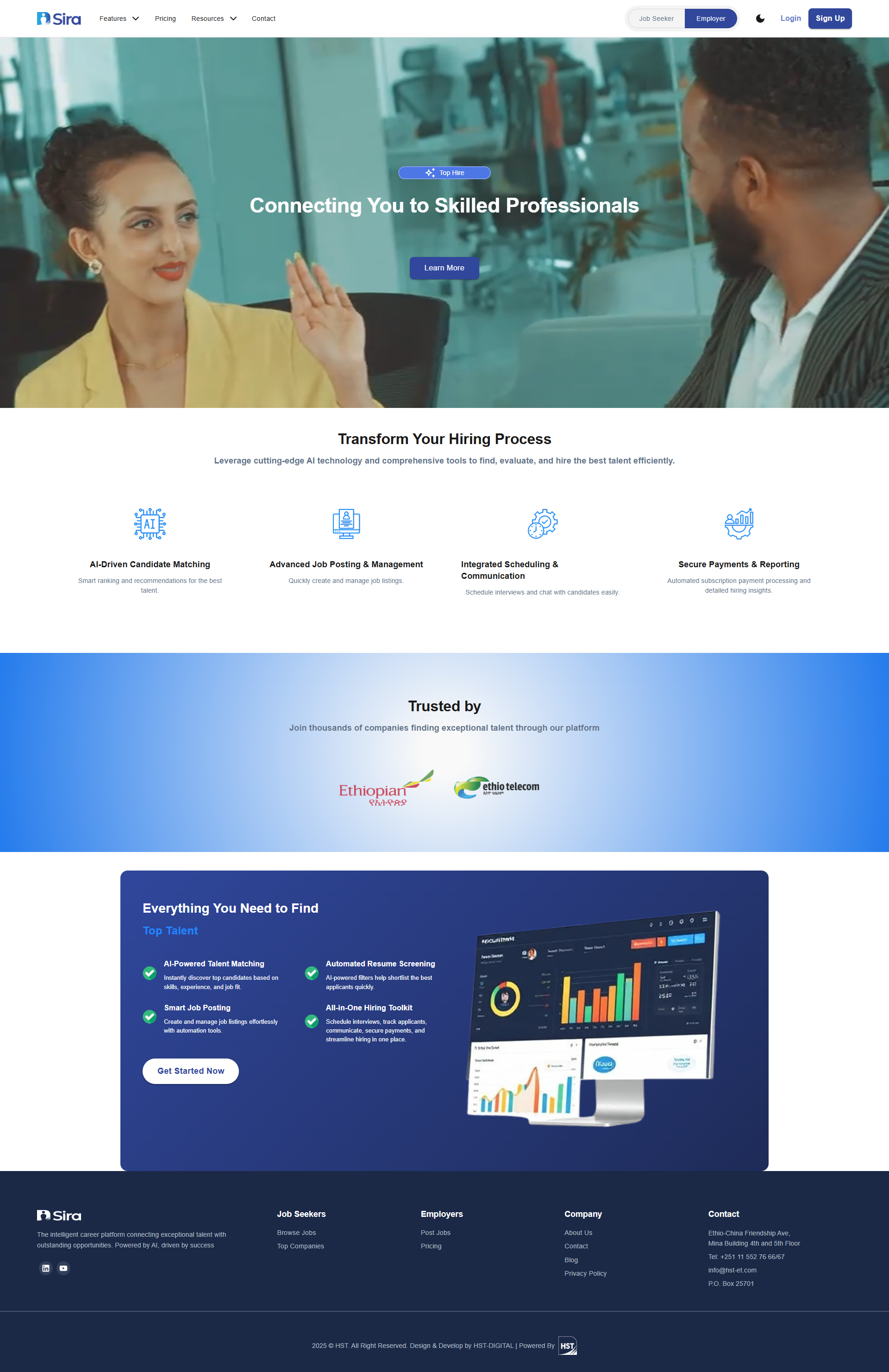 Public Landing Page - Switch toggle to Employer mode
1. Overview
This guide walks employers through the complete account lifecycle:
- Initial Registration & Role Selection
- Email Verification Process
- Profile Completion & Document Submission
- Admin Approval Workflow
- Subscription Selection
- Final Platform Access
2. Prerequisites
Before starting the registration process:
- Valid company email address
- Company registration documents (TIN, Business License)
- Contact person authorization
- Company details (size, industry, address)
- Modern web browser with latest updates
- Stable internet connection
- Access to company email for verification
3. Initial Registration Process
3.1 Role Selection and Account Creation
- Navigate to:
https://sira.hst-et.com - Locate the role toggle at top-right corner
- Switch toggle to "Employer" position
- Click Sign Up button next to the toggle
- You'll be redirected to employer registration page
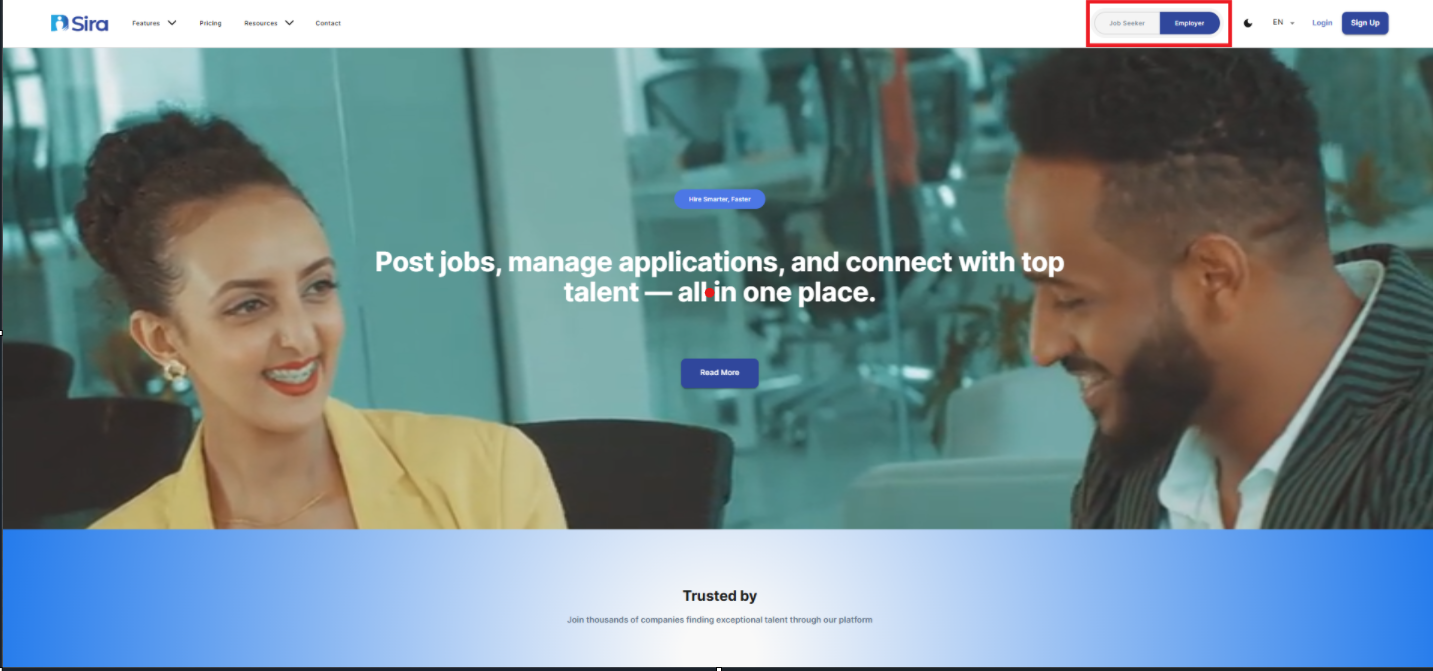 Role Toggle - Set to Employer position before registration
3.2 Registration Form Completion
- Fill in the employer registration form with:
- Contact Person Email Address (Required)
- Password (meeting security requirements)
- Contact Person Full Name
- Read and accept Terms & Conditions
- Click Sign Up
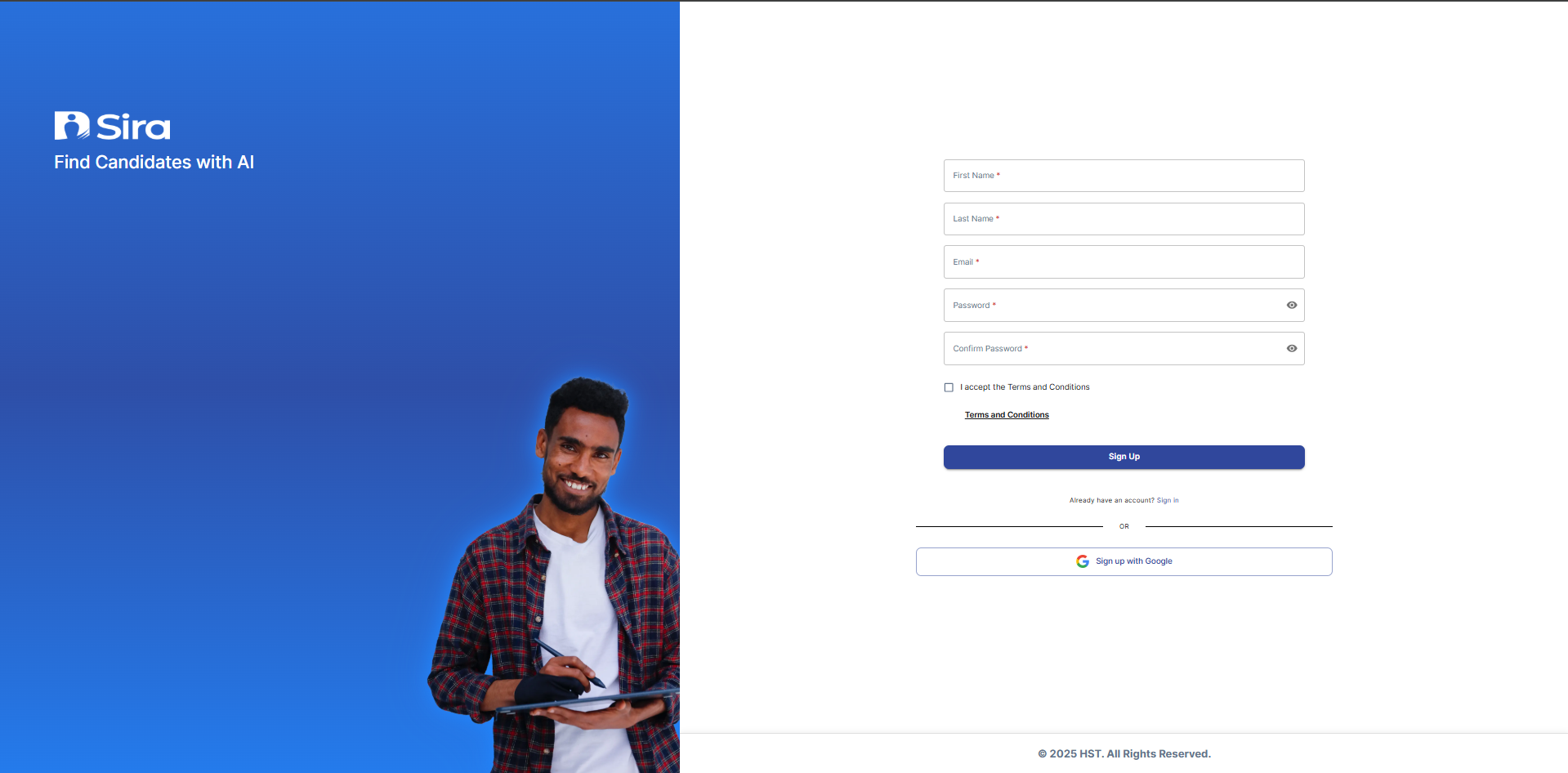 Initial Registration Form - Basic account creation
4. Email Verification Process
4.1 Account Activation
- Check your email inbox
- Look for verification email from
no-reply@hst-et.com - Click Verify Email Address button in the email
- You'll be redirected back to platform
- Email verification is now complete
4.2 If Verification Email Not Received
- Check spam/junk folders
- Wait 5-10 minutes for email delivery
- Ensure email address was entered correctly
- Click Resend Verification Email on login page
- Contact support if issue persists after 30 minutes
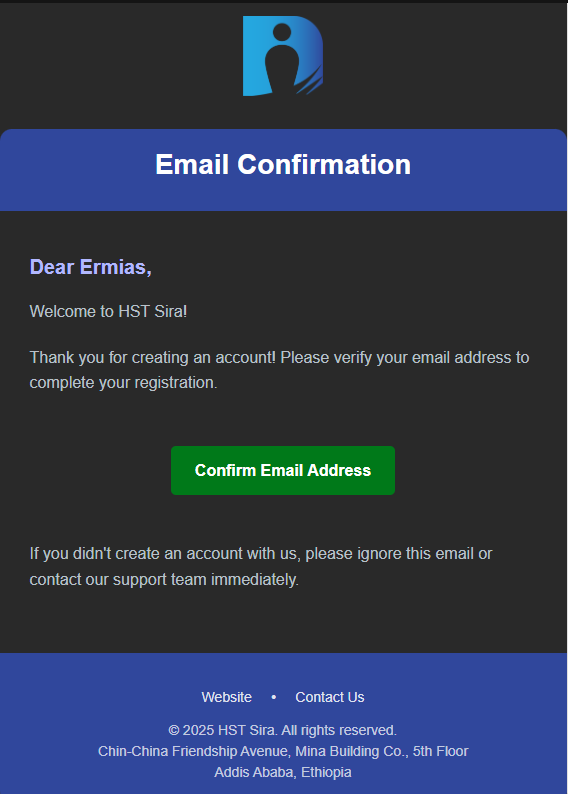 Account Verification Email - Click link to activate account
5. Profile Completion & Document Submission
5.1 First Login After Verification
- Return to platform URL
- Set toggle to "Employer"
- Click Login button
- Enter your verified email and password
- You'll be redirected to profile completion page
5.2 Required Profile Information
Complete all mandatory fields in the profile form:
-
Company Legal Information
- TIN Number (Required)
- Business License Number (Required)
- Company Registration Details
- Legal Company Name
-
Company Details
- Industry/Sector
- Company Size (Number of Employees) (Optional)
- Year Established (Optional)
- Company Address (Optional)
- Website URL (Optional)
 Profile Completion Form - Submit all required company information
- Contact Information
- Primary Contact Person
- Direct Phone Number
 Profile Completion Form - Submit all required company information
5.3 Document Upload
Upload required verification documents:
- Business License Copy
- TIN Certificate
- Any other required legal documents
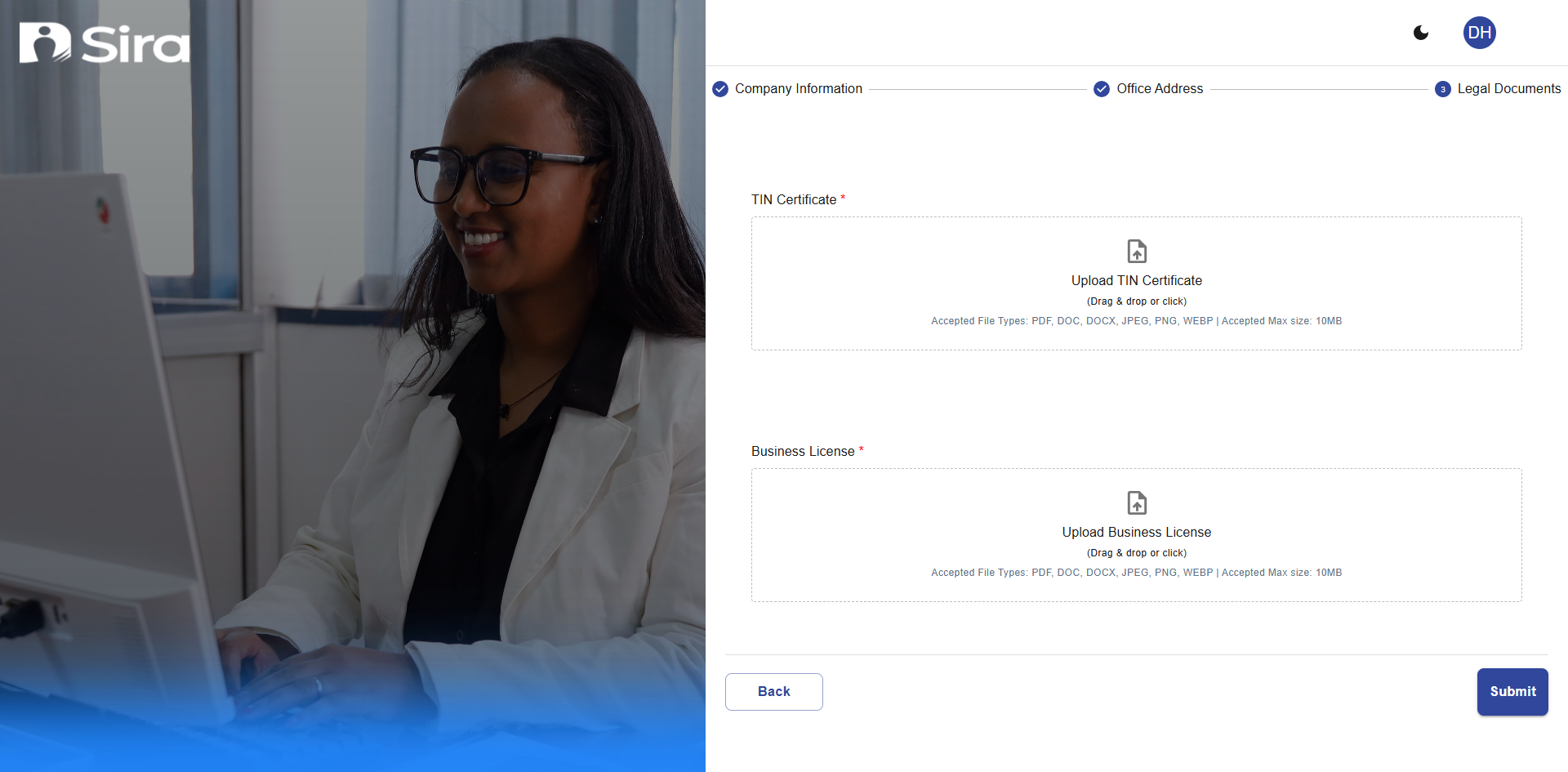 Profile Completion Form - Submit all required company information
5.4 Form Submission
- Review all entered information
- Ensure document uploads are clear and readable
- Click Submit for Approval
- You'll see confirmation message
- Account status changes to "Pending Approval"
6. Admin Approval Workflow
6.1 Pending Approval Status
After profile submission:
- Your account enters "Pending Approval" state
- You can login but access is restricted
- Dashboard shows approval status
- You can view but not edit submitted profile
- Expected approval time: 1-3 business days
 Pending Approval View - Limited access while under review
6.2 Approval Outcomes
6.2.1 Account Approved
- Receive approval notification email
- Next login redirects to subscription page
- Full platform access granted after subscription
- Can now post jobs and access ATS features
6.2.2 Account Rejected
- Receive rejection email with specific reasons
- Login shows rejection details and required actions
- Profile becomes editable for corrections
- Resubmit after making required changes
6.3 Profile Resubmission After Rejection
- Login to your account
- Review rejection reasons provided
- Click Edit Profile to make corrections
- Update incomplete or incorrect information
- Re-upload any problematic documents
- Click Resubmit for Approval
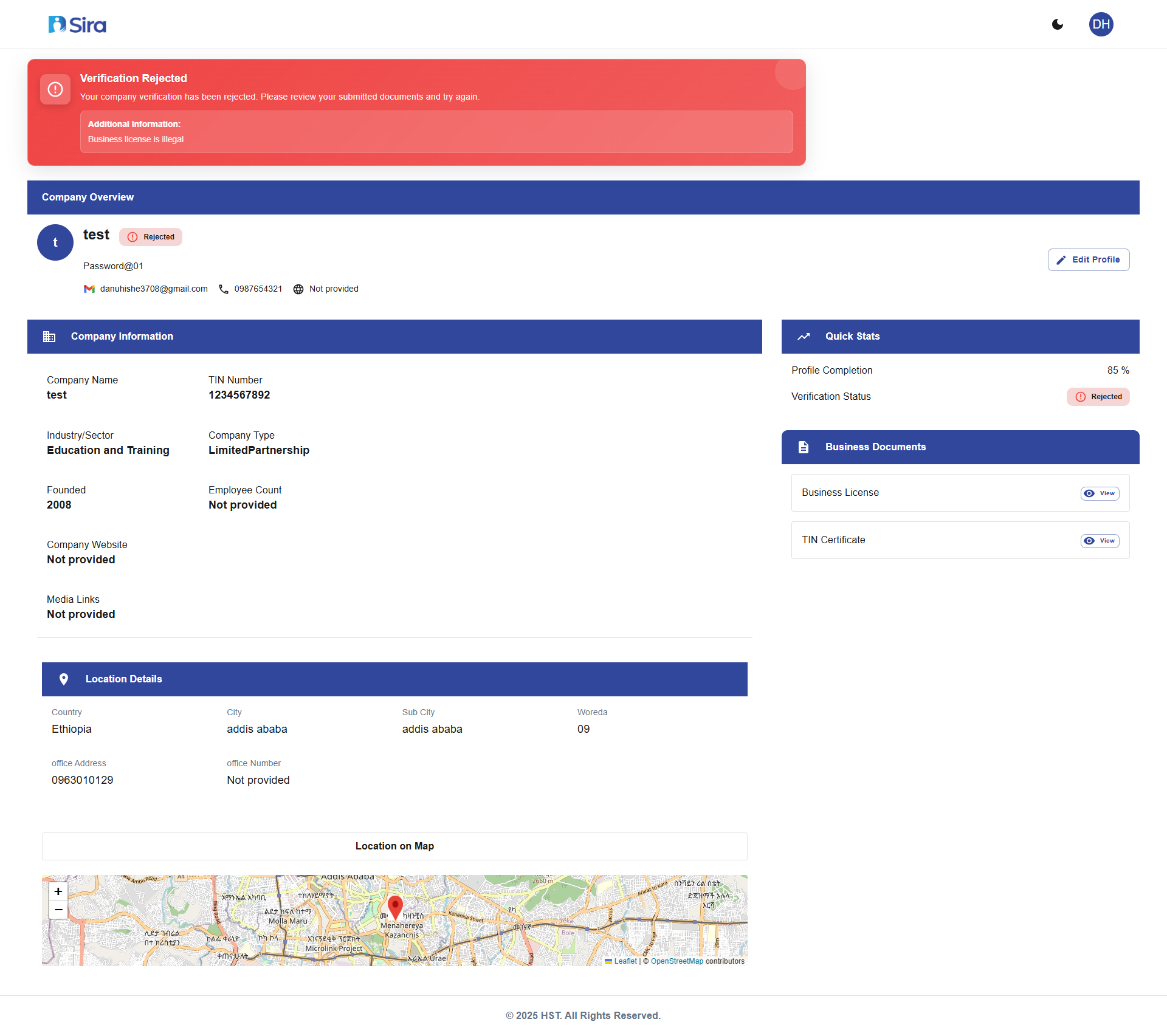
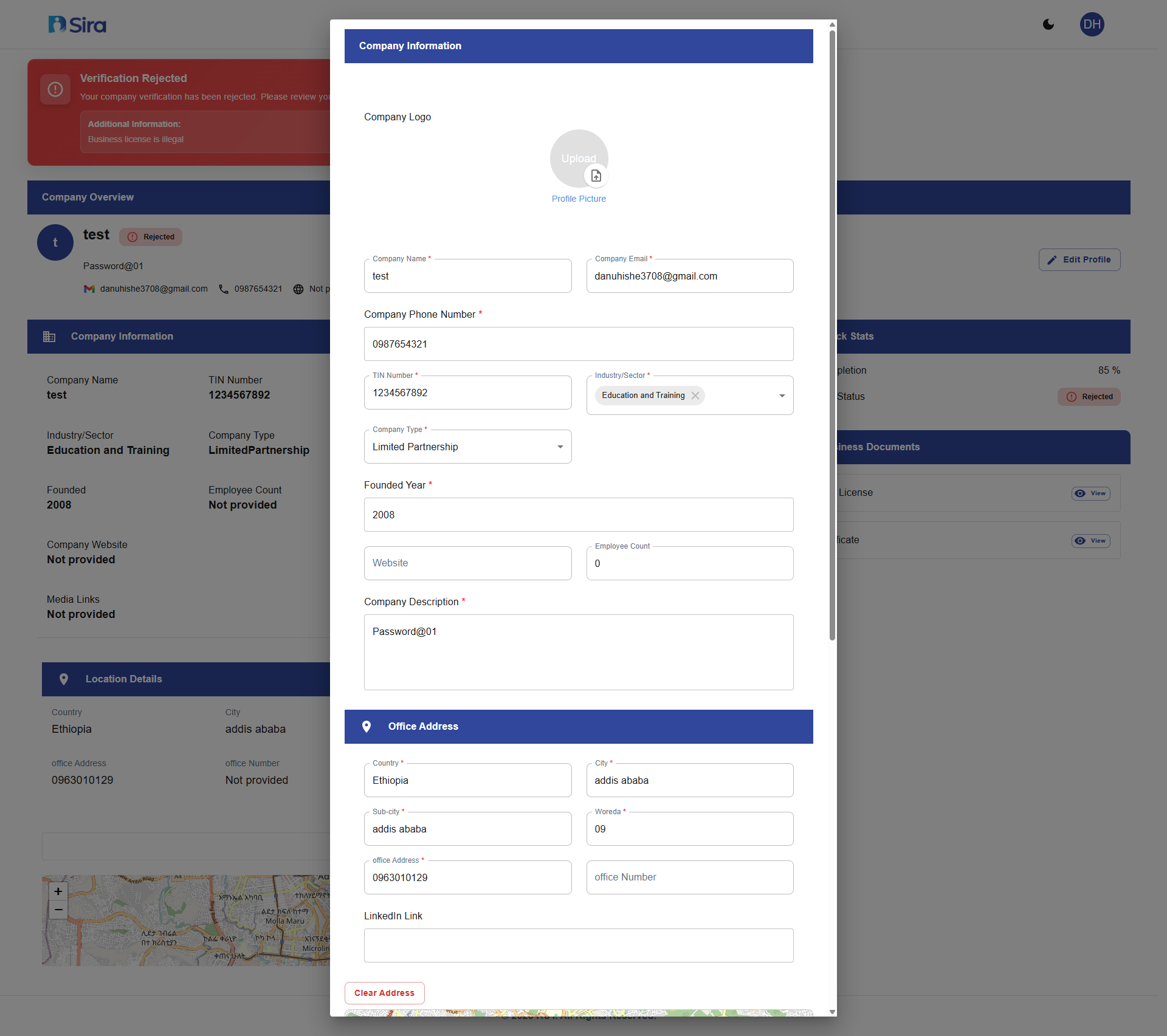
Profile Resubmission - Make corrections and resubmit for approval
7. Subscription Selection
7.1 Package Selection After Approval
Once admin approves your account:
- Login with your credentials
- You'll be automatically redirected to subscription page
- Review available package options:
- Free Plan (Limited features)
- Standard Plan (Basic recruitment tools)
- Premium Plan (Full ATS access)
- Select your preferred package
- Complete subscription process
7.2 Subscription Features Comparison
Compare packages based on:
- Number of job posts allowed
- ATS access level
- Candidate database access
- Analytics and reporting features
- Support level included
- Messaging limits
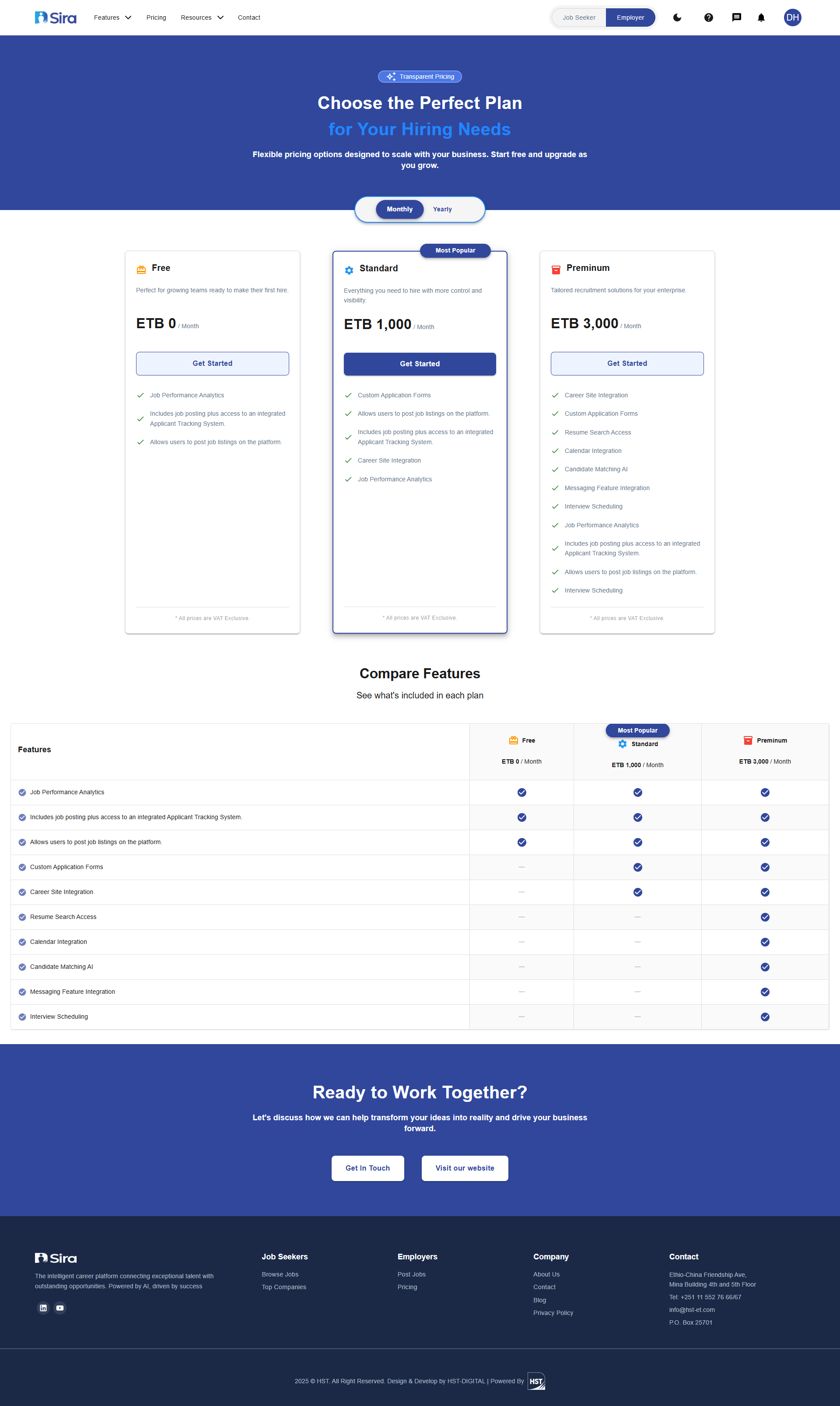 Package Selection - Choose your subscription after approval
8. Login Process for Existing Accounts
8.1 Standard Employer Login
- Go to:
https://sira.hst-et.com - Ensure toggle is set to "Employer"
- Click Login button
- Enter your registered email and password
- Click Sign In
8.2 Post-Login Redirects Based on Status
- Pending Approval: Profile status dashboard
- Rejected: Editable profile with rejection reasons
- Approved (No Subscription): Package selection page
- Approved (With Subscription): Employer main dashboard
9. Account Recovery & Password Management
9.1 Password Reset Process
- Click Forgot Password? on login page
- Enter your registered company email
- Click Send Reset Link
- Check email for password reset instructions
- Click reset link (valid for 24 hours)
- Create new secure password
- Confirm and save changes
10. Common Issues & Solutions
10.1 Registration Problems
-
"Email already registered"
- Use password reset if you own the account
- Contact support if email was used without authorization
-
"Toggle stuck on Job Seeker"
- Refresh the page and try again
- Clear browser cache and cookies
- Try different browser
10.2 Login Issues
-
"Invalid login credentials"
- Verify toggle is set to "Employer"
- Check email and password for typos
- Use password reset if unsure
-
"Account not verified"
- Complete email verification process
- Check spam folder for verification email
- Request new verification email
10.3 Profile Submission Issues
-
"Required documents missing"
- Ensure all mandatory documents are uploaded
- Check file formats and sizes
- Scan documents clearly
-
"Profile submission failed"
- Check all required fields are completed
- Ensure internet connection is stable
- Try again after few minutes
11. Troubleshooting Checklist
Registration Phase
- Toggle set to "Employer" position
- Company email address used
- Strong password created
- Terms and conditions accepted
Verification Phase
- Verification email received
- Email verification link clicked
- Redirected back to platform successfully
Profile Completion
- All mandatory fields completed
- Required documents uploaded
- TIN and business license provided
- Form submitted successfully
Post-Submission
- Approval status visible after login
- Can view submitted profile
- Received confirmation email
12. Frequently Asked Questions (FAQ)
Q: How long does admin approval take? A: Typically 1-3 business days. You'll receive email notification once processed.
Q: Can I edit my profile after submission? A: Only if your submission is rejected. During pending approval, profile is locked for review.
Q: What if I don't receive the verification email? A: Check spam folder, wait 10 minutes, then use "Resend Verification" option on login page.
Q: Can I change my company email after registration? A: Yes, but requires verification of the new email address. Contact support for assistance.
Q: What documents are required for verification? A: TIN certificate and business license are mandatory. Additional documents may be requested.
Q: What happens after my account is approved? A: You'll be redirected to select a subscription package to start using platform features.
Need Assistance?
- Contact customer support
- Refer to FAQs section for common questions
- Contact system admin for technical issues