Messages
Welcome to the Message for employers on HST Sira!
The Messaging System allows you to communicate with candidates, team members, and other contacts directly within the platform.
- Navigate to Messages.
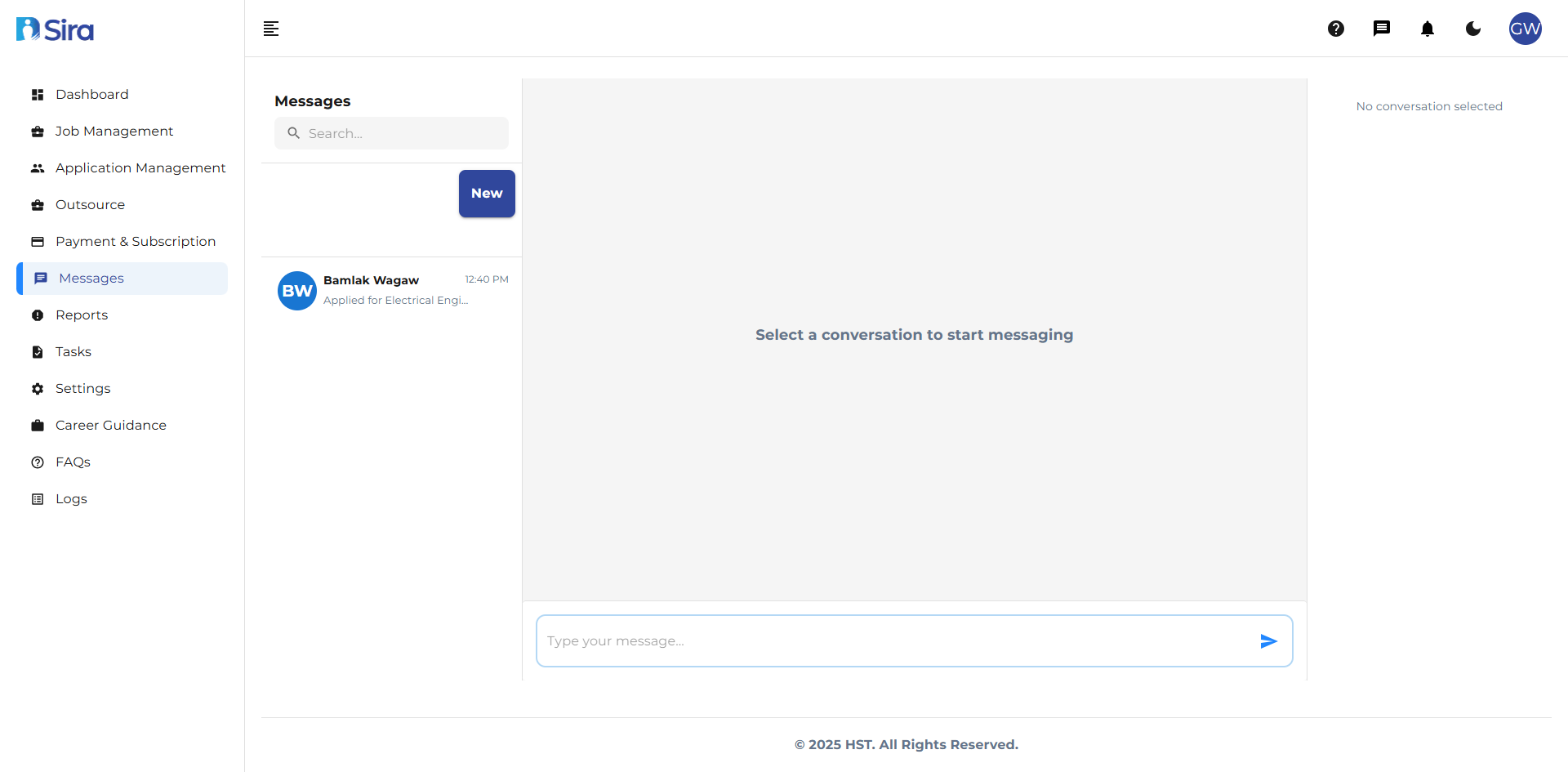 In this section, you can see list of chats and can chat too
Main Components
Left Sidebar:
- Search conversations... - Find specific message threads
- New button - Start a new conversation
- Conversation list with preview of recent messages
Main Message Area:
- Displays selected conversation
- Shows "Select a conversation to start messaging" when no conversation is selected
- Message input field at bottom: "Type your message..."
Using the Messaging System
Starting a New Conversation
- Click the "New" button in the left sidebar
- Select or search for the contact you want to message
- Type your message in the input field at the bottom
- Press Enter or click Send to deliver the message
Searching Conversations
- Use the "Search conversations..." field at the top of the sidebar
- Type any keyword: name of user
- Results will filter in real-time as you type
Sending Messages
- Select an existing conversation or start a new one
- Type your message in the "Type your message..." field at the bottom
- Press Enter or click the send button to deliver
- Your message will appear in the conversation thread
Best Practices
Effective Communication
- Use clear, professional language in all messages
- Include relevant context
- Respond to messages in a timely manner
- Use message system for all candidate communications to maintain records
Organization
- Use consistent naming conventions when starting new conversations
- Regularly review and archive completed conversations
- Utilize search function to quickly find important discussions
Troubleshooting
Common Issues & Solutions
Problem: Cannot find a conversation
- Use the search function with different keywords
- Verify you're using the correct contact name
Problem: Cannot send messages
- Ensure you've selected a conversation first
- Check internet connection
- Verify the message field is not empty
Problem: "No conversation selected" message persists
- Click on any conversation in the left sidebar
- Start a new conversation using the "New" button
- Refresh the page if conversations aren't loading
Need Assistance?
- Contact customer support
- Refer to FAQs section for common questions
- Contact system admin for technical issues