Outsource
Welcome to the Message for employers on HST Sira!
This guide covers the Outsource Management module for handling recruitment outsourcing requests,and payments.
- Navigate to Outsource.
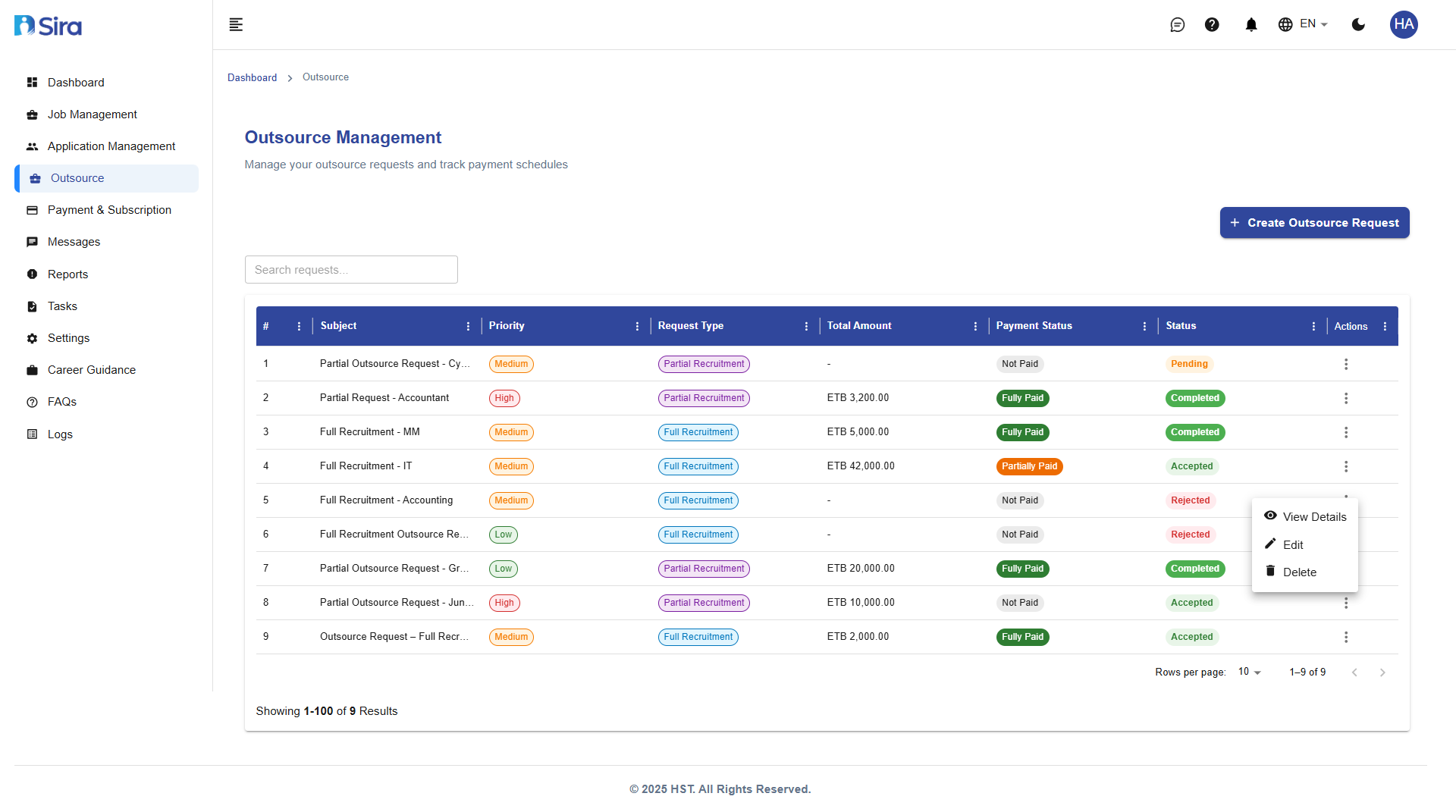 In this section, you can see list of Outsource requests and payment history tab
Main Requests Table
The dashboard displays all outsource requests with the following columns:
| Column | Description |
|---|---|
| # | Request number |
| Subject | Request title and description |
| Priority | Urgency level (Low, Medium, High) |
| Request Type | Full Recruitment or Partial Recruitment |
| Total Amount | Payment value for the request |
| Payment Status | Current payment situation |
| Status | Current request status |
| Actions | Available operations |
Request Status Types:
- Pending - Awaiting review/action
- Accepted - Request approved
- Rejected - Request declined
Payment Status Types:
- Not Paid - No payments received
- Paid - Complete payment received
Creating Outsource Requests
- Navigate to Outsource -> Create Button.
 In this section, you can input fields to create outsource request
Accessing Creation Interface
- Click "Create Outsource Request" button
- Select between Full Recruitment or Partial Recruitment
Full Recruitment Outsource Request
Required Information:
- Subject* - Descriptive title for the request
- Priority* - Urgency level (Low, Medium, High)
- Message* - Detailed description and requirements
- Start Date* - When services should begin
- End Date* - When services should conclude
Optional Information:
- Attachments - Supporting documents (PDF, JPEG, DOC, DOCX)
- Maximum file size: 100MB
Partial Recruitment Outsource Request
Similar to full recruitment but focused on specific recruitment phases or roles.
Viewing Request Details
- Navigate to Outsource -> Three Dot(⋮) Action menu -> View Details.
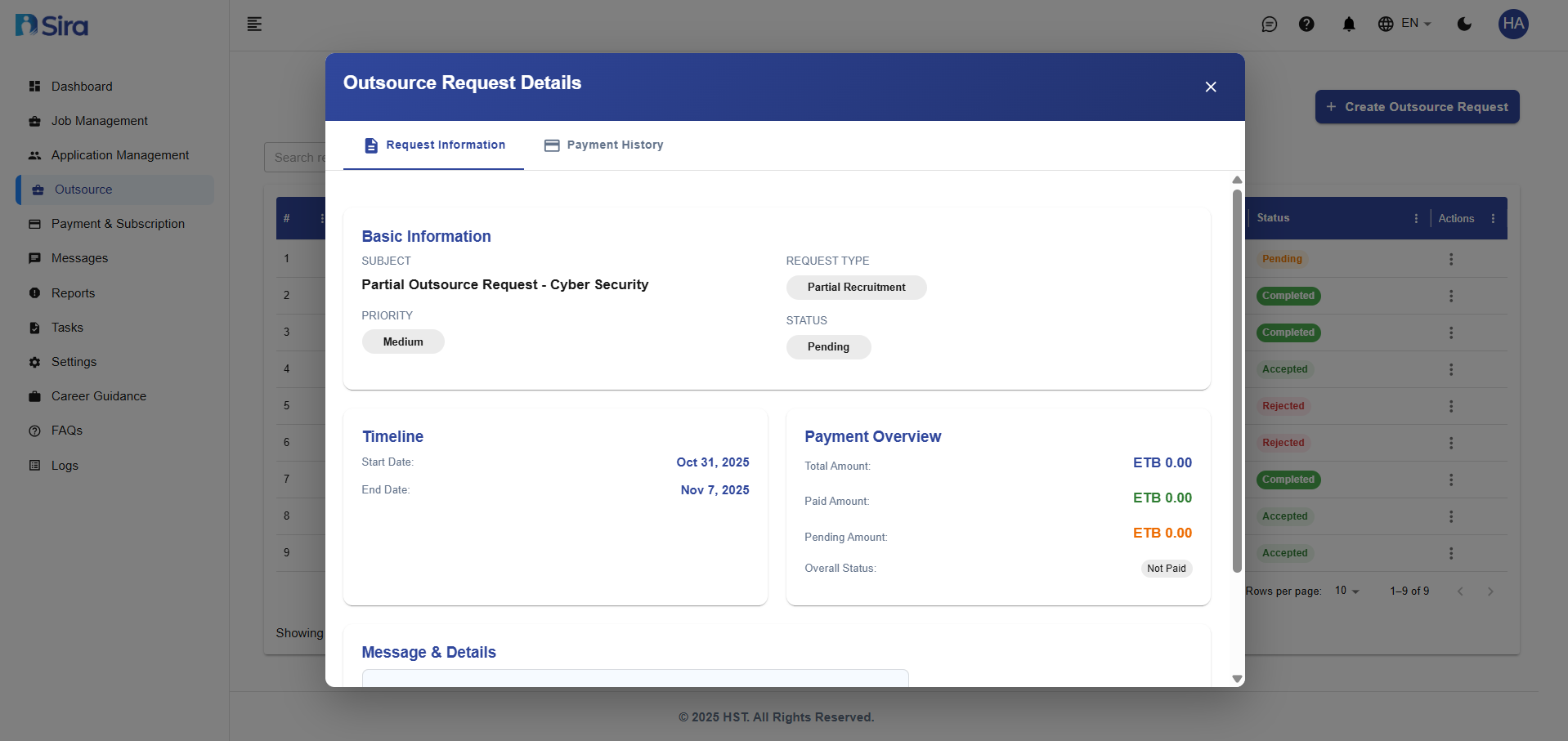 In this section, you can see detail of an individual request Request Details tab
Basic Information Section
- SUBJECT - Request title and description
- PRIORITY - Importance level of the request
- TIMELINE - Start and end dates
- REQUEST TYPE - Full or Partial Recruitment
- STATUS - Current request status
Payment Overview
- Total Amount - Complete service value
- Paid Amount - Amount received to date
- Pending Amount - Outstanding balance
- Overall Status - Payment completion status
Message & Details
- Complete request description
- Specific requirements and instructions
- Additional context and background
Payment Installments Section
- Installment schedule table
- Due dates and amounts
- Payment status tracking
Best Practices
Request Creation
-
Clear Subject Lines
- Use descriptive, specific titles
- Include job roles or departments
- Make subjects easily searchable
-
Accurate Priority Setting
- Use "High" for urgent hiring needs
- "Medium" for standard timelines
- "Low" for future planning
-
Detailed Messages
- Include specific role requirements
- Provide company background
- Specify timeline expectations
- Outline success criteria
Timeline Management
- Set realistic start and end dates
- Consider recruitment process duration
- Account for notice periods
- Allow buffer time for delays
Document Attachment
- Attach detailed job descriptions
- Include company information
- Provide candidate specifications
- Ensure files are within size limits
Payment Planning
- Set clear payment milestones
- Align payments with deliverables
- Track payment status regularly
- Follow up on overdue payments
Troubleshooting
Common Issues
Request Creation Problems:
- "Required field missing" - Ensure all mandatory fields (marked with *) are completed
- "File upload failed" - Check file size and format requirements
- "Date validation error" - Verify end date is after start date
Display Issues:
- "Requests not showing" - Check filters and search criteria
- "Payment information missing" - Allow time for system updates
- "Status not updating" - Refresh page or clear cache
Payment Management Problems:
- "Cannot create payment schedule" - Verify request is accepted first
- "Payment status incorrect" - Contact accounting for payment verification
- "Installments not displaying" - Check if payments have been set up
Access and Permission Issues:
- "Create button missing" - Verify user role has creation permissions
- "Cannot edit request" - Check if request is in editable status
- "Action options limited" - Confirm user permissions level
Search and Filter Problems:
- "Search not working" - Check spelling and try different keywords
- "Filters not applying" - Refresh page and reapply filters
- "Wrong results displayed" - Clear all filters and start new search
Technical Issues:
- "Slow loading" - Check internet connection and try during off-peak hours
- "Buttons not responding" - Refresh page or try different browser
- "Error messages" - Note error code and contact technical support
Need Assistance?
- Contact customer support
- Refer to FAQs section for common questions
- Contact system admin for technical issues