Overview
Welcome to the Job Management Guide for employers on HST Sira!
This document explains how to create, update, and manage job posts on the platform including both ATS (Application Tracking System) and Non-ATS job types.
- Navigate to Job Management.
 In this section, you can see Job lists, Total count cards, create button, and actions
1. Job List Table
Understanding the Job List
The main table shows all your job postings with this information:
- Job Title: Name of the position
- Category: Job field/department
- Status: Current state (Saved, Posted, etc.)
- Actions: Available operations for each job
- Deadline: Application closing date
2. Job Actions Menu
For each job in your list, you can:
- 👁️ View: See full job details
- ✏️ Edit: Modify job information
- 📤 Post: Make job live for applicants
- ⏸️ Deactivate: Temporarily hide from applicants
- ❌ Close: Stop accepting applications
- 🙈 Hide: Remove from public view
- ↩️ Reopen: Reactivate a closed position
3. Viewing Job Details
- Navigate to Job Management -> on the Action menu(⋮) click view.
 In this section, you can see individual job lists detail
Essential Information Panel
- Employment Type, Location, Salary
- Post Date and Deadline
- Career Level and Category
Job Metrics
- Number of open positions
- Application statistics
Full Job Description
- Complete role description
- Duties & Responsibilities list
- Education and Experience requirements
4. Request partial Outsource
- Navigate to Job Management -> on the Action menu(⋮) click Request partial Outsource.
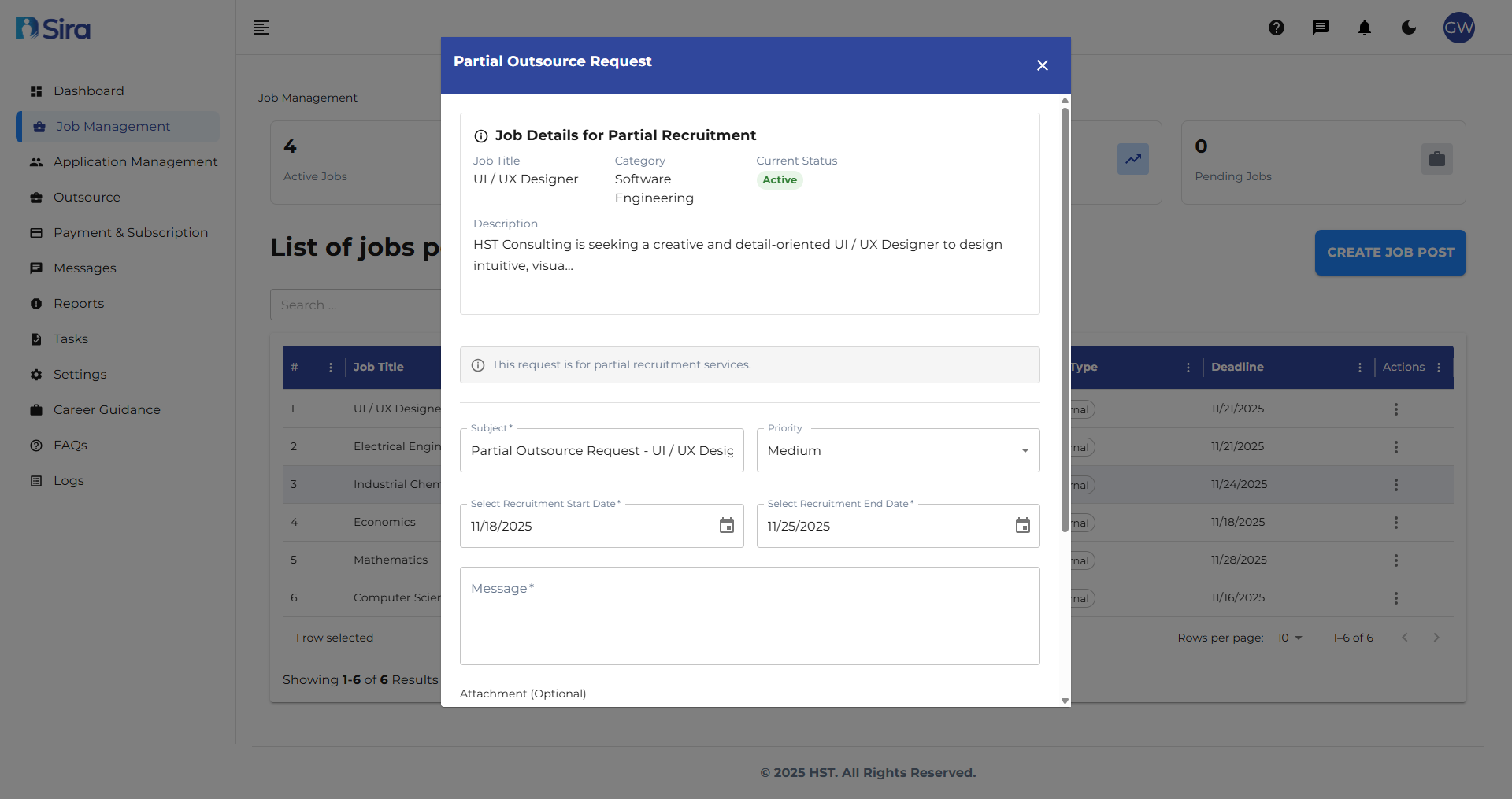 In this section, you can see individual job lists detail
Required Information
Subject Line:
- Format: "Partial Outsource Request - [Job Title]"
- Example: "Partial Outsource Request - Cyber Security"
Priority Level:
- Select appropriate priority: Low, Medium, High
- Example: Medium
Timeline Settings:
- Select Start Date: Choose proposed start date
- Example: 11/02/2025
- End Date: Optional end date selection
- Example: 11/09/2025
Optional Components
Messages:
- Additional instructions or notes
- Special requirements or preferences
- Contact information or follow-up details
Attachments:
- Marked as optional
- Can include: Job descriptions, candidate profiles, requirements documents
- Helpful label: "Useful attachment"
Request Submission Process
Final Review
Before submitting:
- Verify job title and details are correct
- Confirm priority level selection
- Check start and end dates
- Review any additional messages
- Attach supporting documents if needed
Submission Actions
- System validates required fields
- Request is logged in outsource management system
- Status changes to "Pending" for review
Best Practices
- To create a new job: Use CREATE JOB POST button
- To edit a job: Find it in the list and click Edit
- To close a filled position: Use Close action
- To repost a job: Use Reopen or create a new post
Troubleshooting
Common Issues
Problem:
- "CREATE JOB POST" button not working
- Stuck on job type selection screen
- Error when selecting job type
Solutions:
- Refresh the page and try again
- Check internet connection
- Verify user permissions for job creation
- Clear browser cache and cookies
Problem: Incorrect Job Status
- Jobs showing wrong status (Saved vs Posted)
- Cannot change job status
- Status actions grayed out or unavailable
Solutions:
- Verify job completion (all required sections filled)
- Check if deadline has passed
- Ensure user has permission to modify status
- Refresh the page to sync latest status
Problem: Action Menu Issues
- Edit, Post, Close buttons grayed out
- "View" action not working
- Permission errors when taking actions
Solutions:
- Verify job status allows requested action
- Check user permissions for specific actions
- Ensure job is not in "Closed" or "Expired" status
- Contact administrator for permission updates
Problem: Search and Filter Issues
- No results when searching for existing jobs
- Filters not working correctly
- Incorrect result counts
Solutions:
- Check for typos in search terms
- Clear all filters and search again
- Verify job titles match search terms exactly
- Reset search parameters
Need Assistance?
- Contact customer support
- Refer to FAQs section for common questions
- Contact system admin for technical issues