Go To Application
This guide explains how to manage applicants step by step in the Application Management dashboard.
- Navigate to Application Management → Go To Applicants.
 In this section, see all your applicant stages, and applicant status.
Manage Applicants in a Stage
- Navigate to Go To Applicants -> On the top of the Stage three-dot menu (⋮).
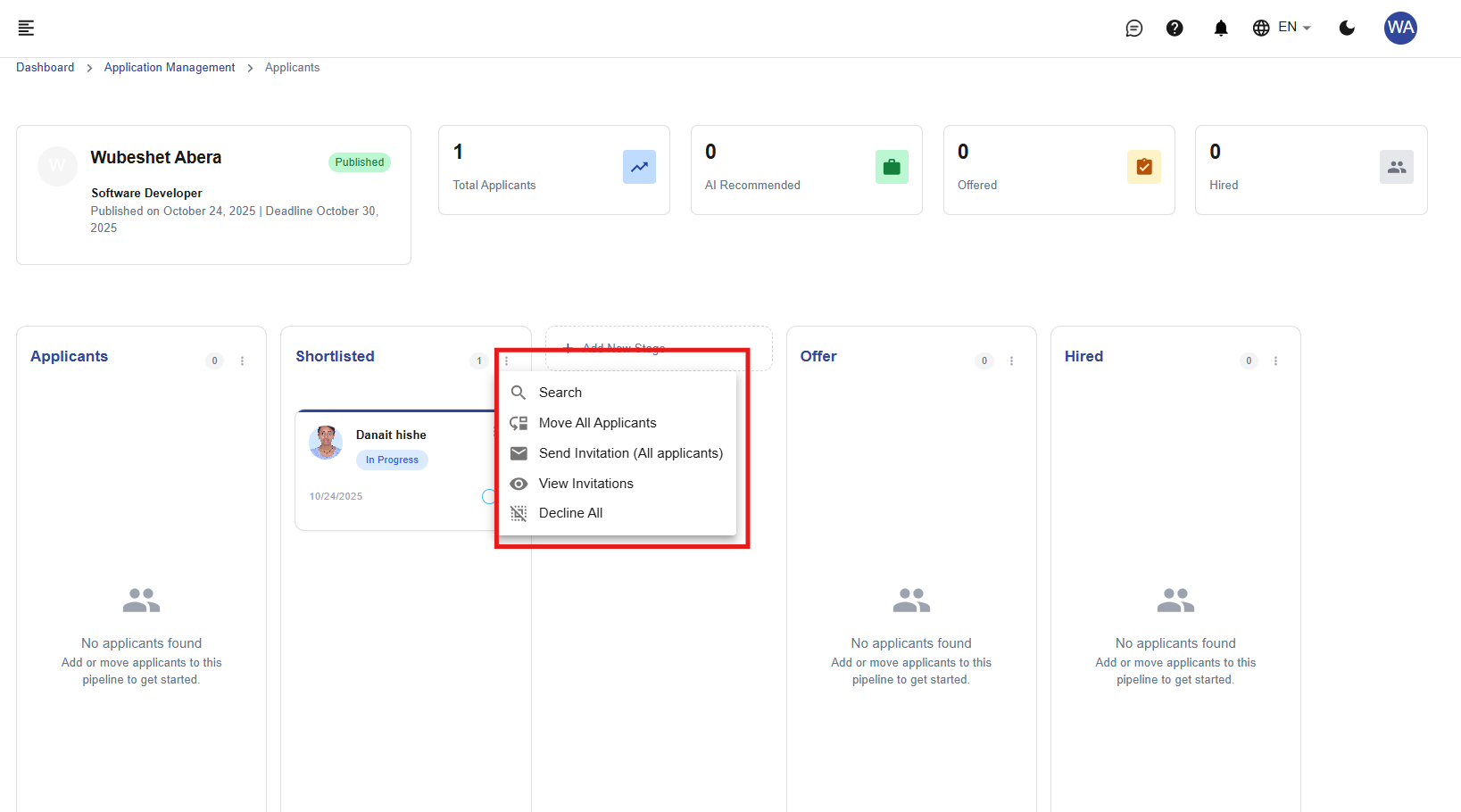
 In this section, you can manage applicants in bulk and view sent invitation and resend.
- Each stage (like Applicants, Shortlisted, Offer, Hired) contains applicant cards.
- You will see actions such as:
- 🔍 Search: Find a specific applicant when there are many applicants.
- 🔁 Move All Applicants: Bulk move applicants to the next stage.
- ✉️ Send Invitation (All Applicants): Send invitations to all applicants in the current stage.
- 👁️ View Invitations: View all invitations sent to applicants.
- ❌ Decline All: Decline all applicants in the current stage.
Adding a New Stage
- Navigate to Go To Applicants -> On the Stage section -> + AddNew Stage.

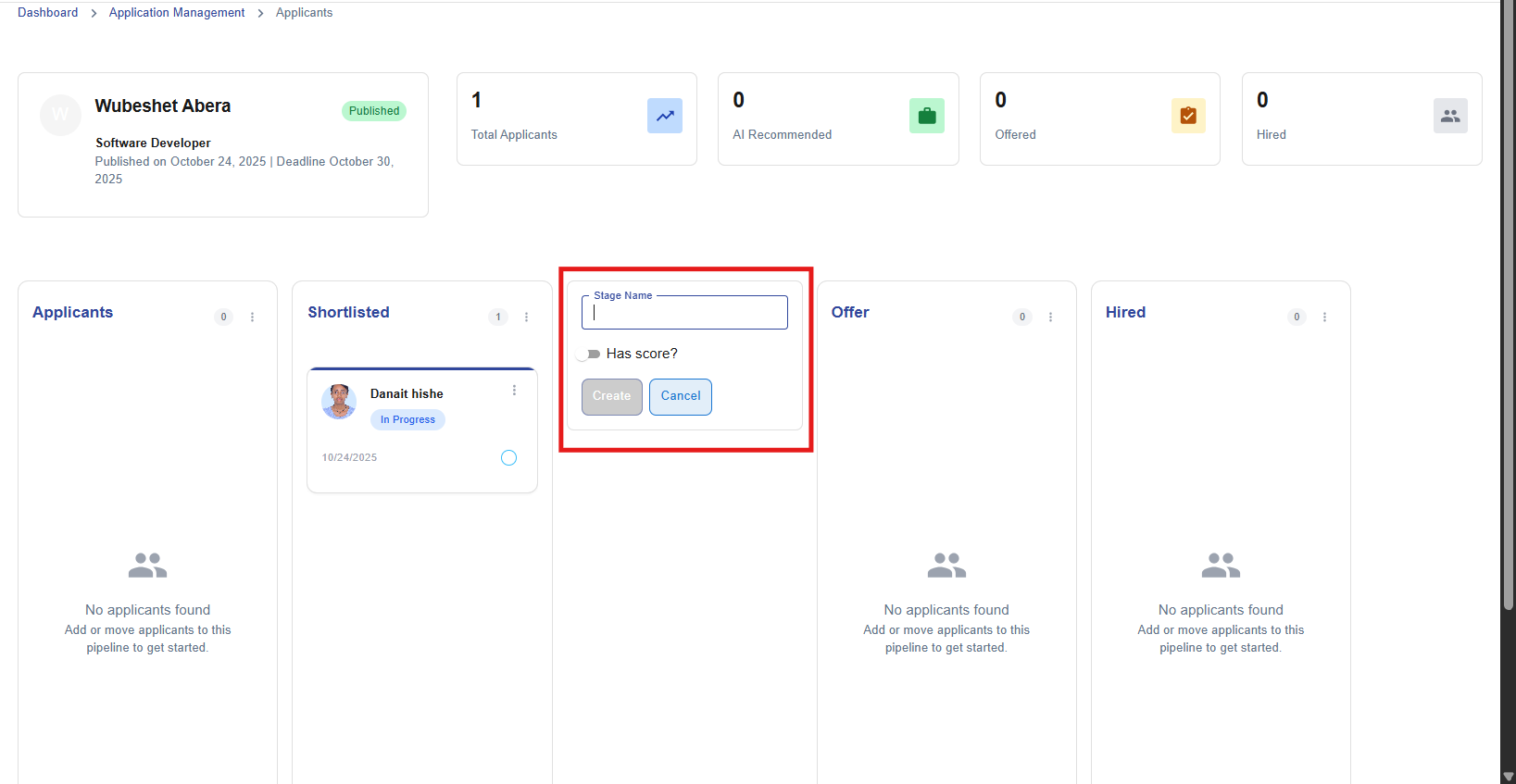 In this section, you can input the stage name and create a new stage for the applicant.
Adding New Stages
- Click "Add New Stage" button
- Configure stage settings:
- Stage Name - Descriptive title
- Require Score? - Toggle to switch ON/OFF
Manage Individual Applicant Actions
- Navigate to Go To Applicants -> On Individual Applicant three-dot menu (⋮).
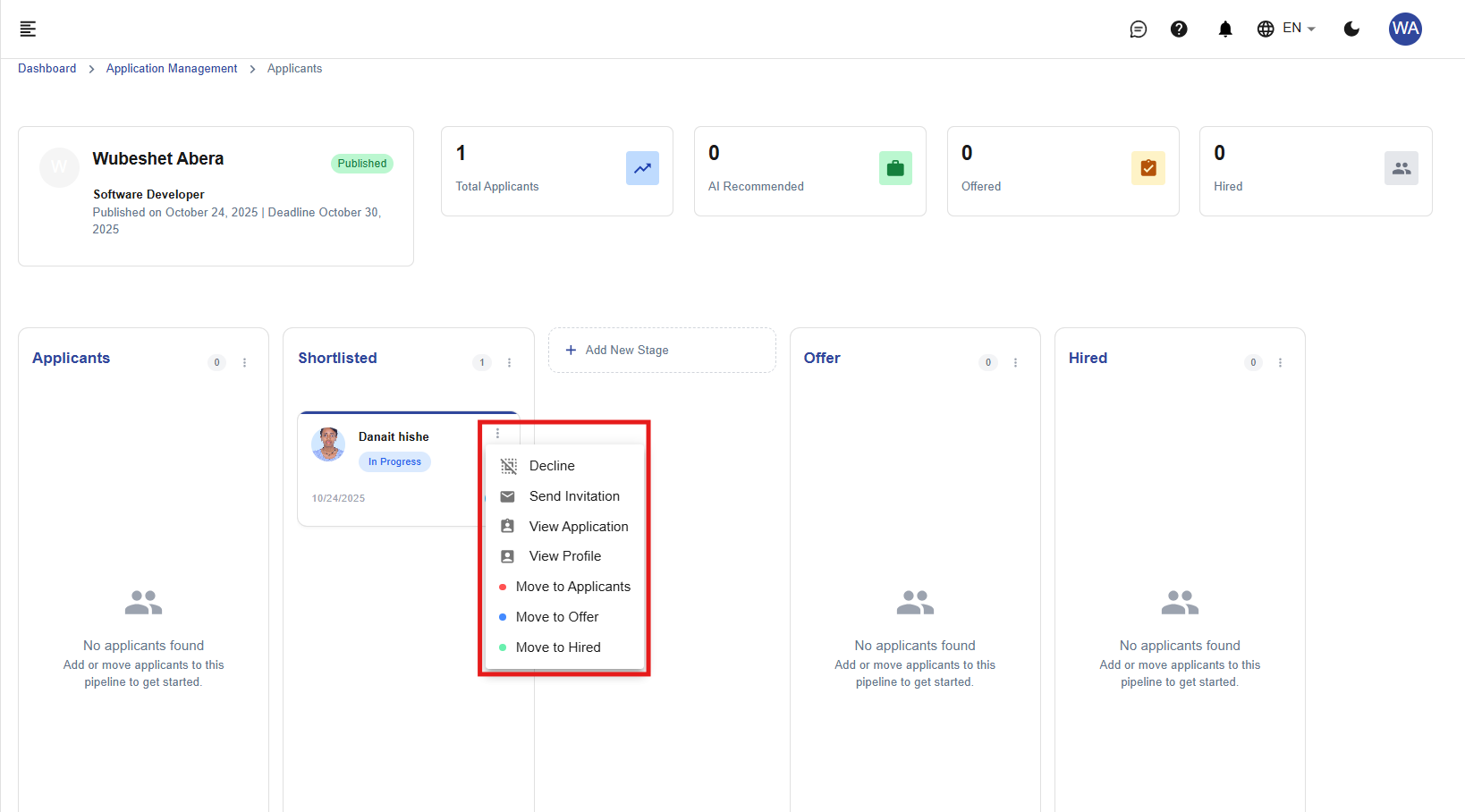 In this section, you can manage applicants individually
- You will see actions such as:
- ❌ Decline: Reject the applicant for the current stage.
- ✉️ Send Invitation: Send an interview or assessment invitation to the applicant.
- 👁️ View Application: Review the applicant’s submitted application details.
- 👤 View Profile: View the applicant’s full profile and personal information.
- 🔄 Move to Applicants: Return the applicant to the main applicants list or previous stage.
- 🟦 Move to Offer: Move the applicant to the job offer stage.
- 🟩 Move to Hired: Mark the applicant as hired and finalize their status.
Sending an Invitation
- Navigate to Go To Applicants -> On Individual Applicant three-dot menu (⋮) -> Send Invitation.
 In this section, you can send an invitation to the applicant, along with an option to upload an attachment.
Types of Invitations
- Normal Invitation
- Sent without acceptance and without attachments.
- The acceptance checkbox remains inactive (unchecked).
- Invitation with Acceptance
- Sent with an acceptance option for the applicant to confirm.
- The acceptance checkbox is activated (checked).
- Invitation with Attachment Only
- Sent with necessary documents attached from the local device.
- The acceptance checkbox is disabled (unchecked).
- Invitation with Attachment and Acceptance
- Sent with both attachments (if required) and acceptance enabled.
- Attach the necessary documents from the local device and activate the acceptance checkbox.
Viewing Application Details
- Navigate to Go To Applicants -> On Individual Applicant three-dot menu (⋮) -> View Application.
 In this section, shows the applicant's details including their cover letter.
Profile Details
- Navigate to Go To Applicants -> On Individual Applicant three-dot menu (⋮) -> View Profile -> View Application History.

 In this section, displays the applicant's personal information and you can view the application history of the applicant.
Tips
- Use “Add New Stage” to create custom hiring stages.
- Always check the Total Applicants and AI Recommended indicators on top.
- Click any applicant card to view full details and history.
Best Practices
Stage Management
-
Custom Stage Creation
- Create stages that match your hiring workflow
- Use descriptive names for clear identification
- Enable scoring for stages requiring evaluation metrics
-
Workflow Optimization
- Maintain consistent stage progression
- Avoid creating too many stages (4-6 recommended)
- Regularly review and update stage requirements
Applicant Handling
-
Timely Responses
- Respond to applicants within 48-72 hours
- Use bulk actions for efficient processing
- Set clear expectations for each stage transition
-
Communication Standards
- Use appropriate invitation types for different purposes
- Personalize invitations when possible
- Maintain professional tone in all communications
-
Data Management
- Regularly update applicant status
- Use search function for large applicant pools
- Monitor AI recommendations for candidate matching
Invitation Best Practices
-
Attachment Guidelines
- Keep attachment sizes reasonable
- Use standard file formats (PDF, DOCX)
- Ensure documents are professional and error-free
-
Acceptance Requirements
- Use acceptance for time-sensitive communications
- Set clear deadlines for acceptances
- Follow up on pending acceptances
Monitoring and Analytics
-
Performance Tracking
- Monitor conversion rates between stages
- Track time spent in each stage
- Analyze decline reasons for process improvement
-
AI Utilization
- Pay attention to AI-recommended candidates
- Use AI insights for better candidate matching
- Combine AI recommendations with human judgment
Troubleshooting
Common Issues
Stage Management Problems:
- "Cannot add new stage": Check user permissions
- "Stage not saving": Verify all required fields are completed
- "Stage name already exists": Use unique names for each stage
Applicant Movement Issues:
- "Cannot move applicant": Verify applicant is not in final stage
- "Bulk move failing": Check if all selected applicants are eligible
- "Wrong stage assignment": Refresh page and verify current stage
Invitation Problems:
- "Invitation not sending": Check internet connection and recipient email
- "Attachment too large": Compress files or use cloud links
- "Acceptance not working": Verify invitation type and settings
Display and Access Issues:
- "Applicant cards not loading": Clear browser cache or refresh page
- "Three-dot menu missing": Check user permissions for applicant management
- "Profile not accessible": Verify applicant data completeness
Search and Filter Problems:
- "Search not returning results": Check spelling and search criteria
- "Filters not applying": Refresh page and reapply filters
- "Missing applicants": Verify stage filters and applicant status
Technical Performance:
- "Slow loading with many applicants": Use search and pagination features
- "Button not responding": Try different browser or clear cache
- "Data not syncing": Allow time for server updates
Need Assistance?
- Contact customer support
- Refer to FAQs section for common questions
- Contact system admin for technical issues