Job Template Creation
Overview
This guide provides step-by-step instructions for creating reusable job templates in the Job Management System.
- Navigate to Settings -> Job Template -> Add New Job Template Button.
Basic Information
- Navigate to Settings -> Job Template -> Add New Job Template Button ->Basic Information.

 Step 1/5: Basic Information
Required Job Details
Job Identification:
- Job Title * (Required)
- Role / Position Name
- Job Category * (Required)
Position Details:
- Employment Type * (Required)
- Career Level * (Required)
- Number of openings * (Required) - Default: 1
Location & Preferences:
- Job Location
- Gender preferences (if any)
- Internal Job Posting Only - Check for internal-only templates
Location Services:
- Automatic coordinates generation (Latitude/Longitude)
- Address validation and mapping
Navigation:
- PREVIOUS - Not available on first step
- NEXT - Proceed to Job Content
Job Content
- Navigate to Settings -> Job Template -> Add New Job Template Button ->Job Content.

 Step 2/5: Job Content
Required Content
- Job Description * (Required)
- Duties & Responsibilities * (Required)
Navigation:
- PREVIOUS - Return to Basic Information
- NEXT - Proceed to Requirements
Requirements
- Navigate to Settings -> Job Template -> Add New Job Template Button ->Requirements.
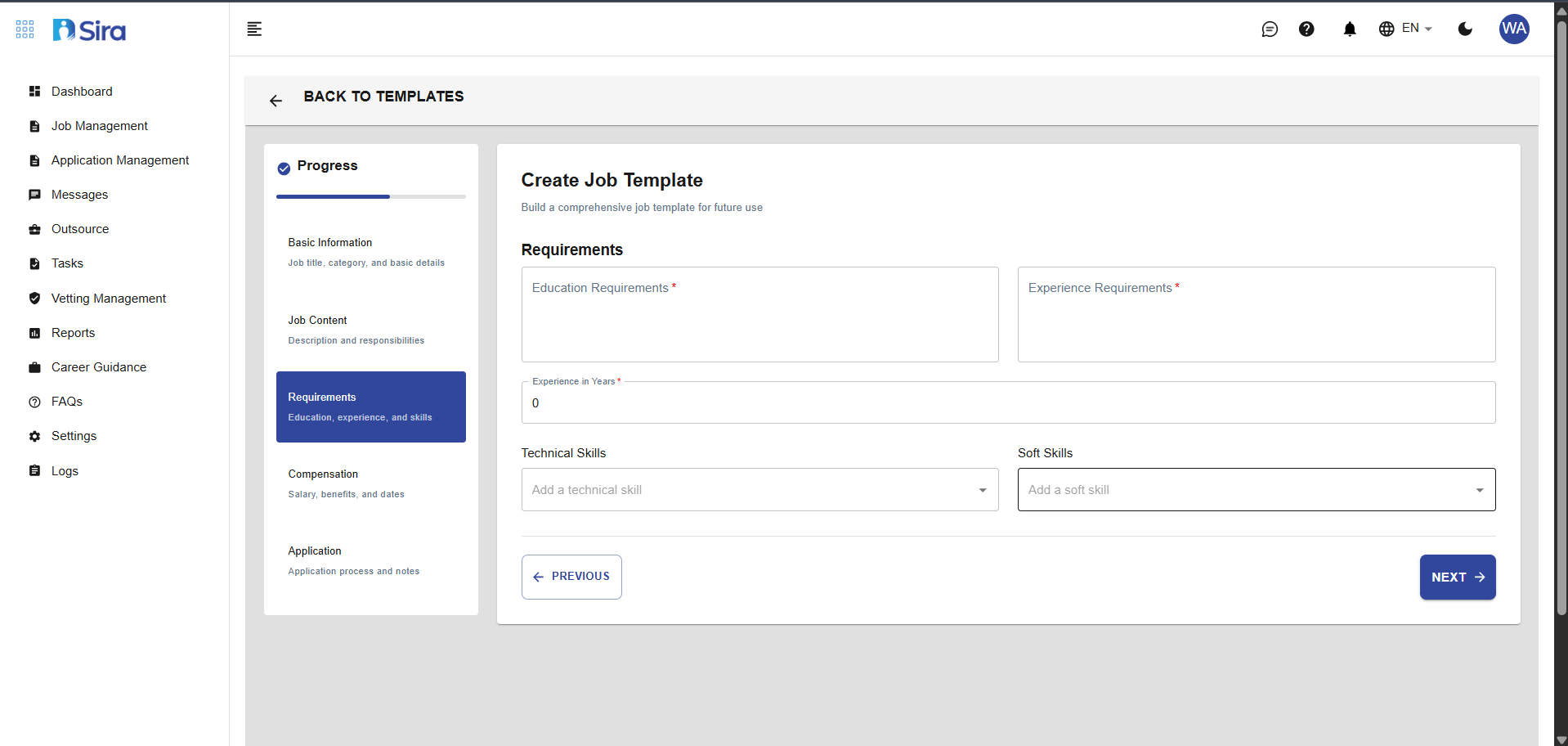 Step 3/5: Requirements
Required Qualifications
Education Requirements * (Required)
- Specify minimum educational level
- Include field of study if relevant
- Note equivalent experience if acceptable
Experience Requirements * (Required)
- Experience in Years * - Set minimum (Default: 0)
- Describe type of experience needed
- Include industry-specific requirements
Skills Specification
Technical Skills
- Add a technical skill - Click to add multiple skills
Soft Skills
- Add a soft skill - Click to add multiple skills
Navigation:
- PREVIOUS - Return to Job Content
- NEXT - Proceed to Compensation
Compensation & Benefits
- Navigate to Settings -> Job Template -> Add New Job Template Button ->Compensation & Benefits.
 Step 4/5: Compensation & Benefits
Compensation Package
Salary Information:
- Salary Type * (Required) - Net, Gross, Range, etc.
- Salary * (Required) - Enter amount (Default: 0)
Employment Timeline:
- Expected Start Date * (Required) - mm/dd/yyyy
- Expected End Date * (Required) - For fixed-term positions
Work Arrangements:
- Please provide the Work Location * (Required)
- Specify onsite, remote, or hybrid arrangements
Benefits Offered * (Required)
- List all compensation beyond salary
- Health insurance, retirement plans, bonuses
- Professional development opportunities
- Work-life balance benefits
Navigation:
- PREVIOUS - Return to Requirements
- NEXT - Proceed to Application
Application Process
- Navigate to Settings -> Job Template -> Add New Job Template Button ->Application Process.
 Step 5/5: Application Process
Application Configuration
How to Apply * (Required)
- Use rich text editor for detailed instructions
- Include application deadlines
- Specify required documents (resume, cover letter, portfolio)
- Note any assessment or testing requirements
Additional Notes
- Internal processing instructions
- Special considerations for hiring team
- Template usage notes and restrictions
Navigation:
- PREVIOUS - Return to Compensation
- SAVE TEMPLATE - Complete and save the template
Best Practices
- Be Comprehensive - Include all possible fields for flexibility
- Set Realistic Defaults - Use common requirements as baseline
- Maintain Consistency - Standardize formatting across templates
- Regular Updates - Review and update templates quarterly
- Department-Specific - Create templates for different departments
Completion
Once all 5 steps are completed:
- Template is saved to your library
- Available for future job postings
- Can be edited or duplicated as needed
- Saves time on repetitive job setup
Troubleshooting
Common Issues
Problem:
- Red validation errors on required fields
- Cannot proceed to next step
- Form not saving information
Solutions:
- Ensure all * (required) fields are completed
- Check for special characters in text fields
- Verify date formats (mm/dd/yyyy)
- Try using different input methods
Problem: Template Issues
- "SAVE TEMPLATE" button not working
- Progress lost when navigating away
Solutions:
- Complete all 5 steps in the template creation process
- Ensure all required fields (*) are filled
- Check for internet connectivity issues
Problem: Navigation Issues
- "PREVIOUS" or "NEXT" buttons not working
- Stuck on one step of job creation
- Progress tracker not updating
Solutions:
- Complete all required fields in current step
- Check for validation error messages
- Deep refresh your browser by pressing "Ctrl + Shift + R"
Problem: Date Pickers Malfunctioning
- Cannot select dates from calendar
- Date format errors
- Start/End date validation issues
Solutions:
- Manually type dates in mm/dd/yyyy format
- Ensure end date is after start date
- Check system date format settings
Need Assistance?
- Contact customer support
- Refer to FAQs section for common questions
- Contact system admin for technical issues